Arazzo in Scalar
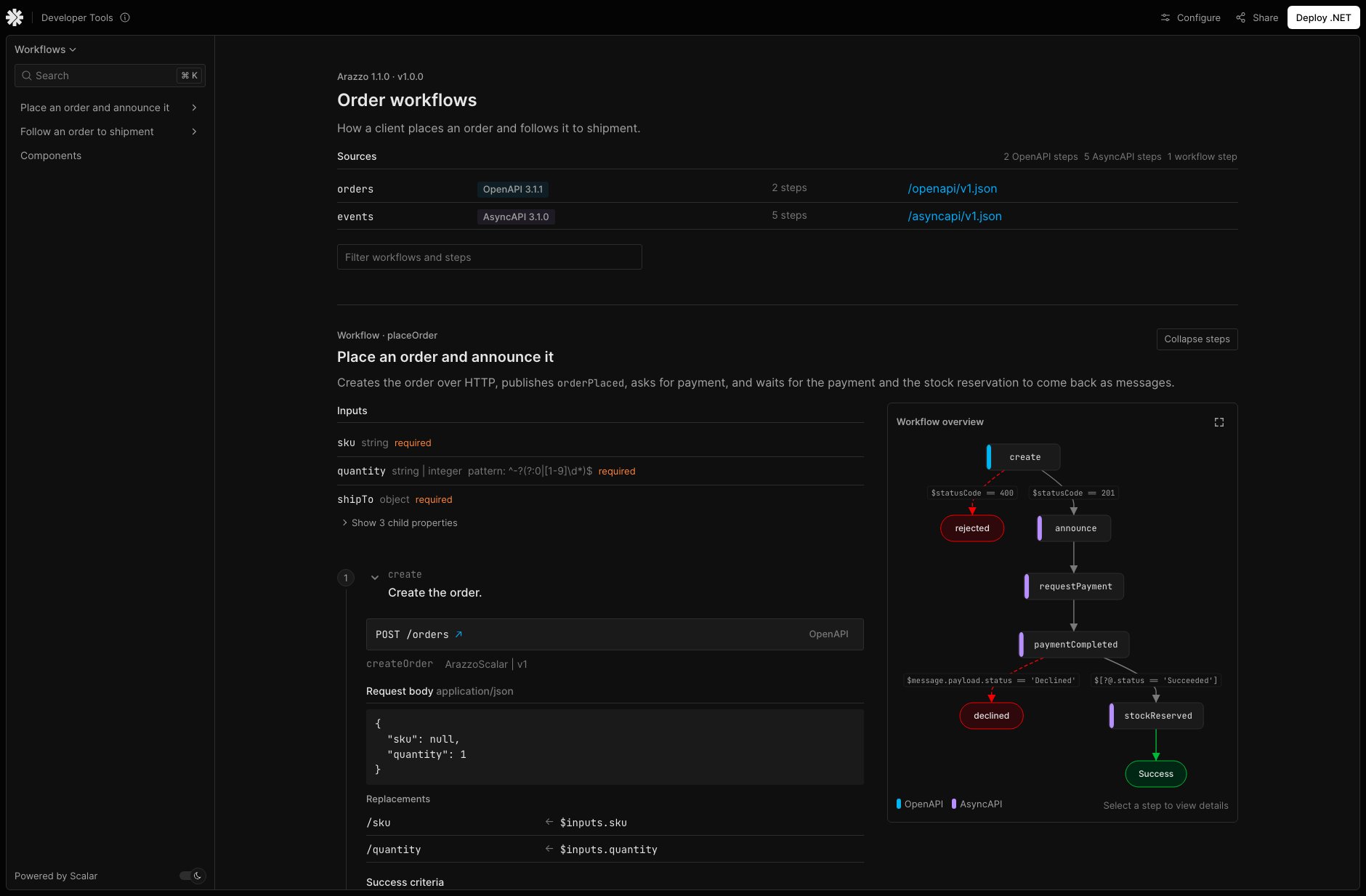
Bielu.AspNetCore.Arazzo.Scalar renders Arazzo documents in the Scalar API
Reference, on the same page as the OpenAPI and AsyncAPI documents their steps call.
Important
The plugin uses Scalar's plugin documentTypes API, first released in @scalar/api-reference 1.80.0
(scalar/scalar#10816). Scalar.AspNetCore bundles that version from
3.0.1 on, and this package depends on it. Older Scalar versions ignore the plugin and show an Arazzo source as an
empty OpenAPI document.
Setup
dotnet add package Bielu.AspNetCore.Arazzo.Scalar
builder.Services.AddArazzo(options =>
{
    options.WithInfo("Order workflows", "1.0.0");
    options.AddOpenApiSource("orders", "v1");
    options.AddAsyncApiSource("events", "v1");
    options.AddWorkflow("placeOrder", workflow => workflow
        .Step("create", step => step.Operation("createOrder"))
        .Step("announce", step => step.Channel("events", "orderPlaced", ArazzoStepAction.Send)));
});

var app = builder.Build();

app.MapOpenApi();
app.MapAsyncApi();
app.MapArazzo();
app.MapScalarArazzoAssets();

app.MapScalarApiReference(options => options
    .AddDocument("v1", "Orders")
    .AddAsyncApiDocument("v1", "Events")
    .AddArazzoDocument("v1", "Workflows")
    .WithArazzo());
AddArazzoDocument adds the document MapArazzo() serves (/arazzo/{documentName}.json by
default) as a Scalar source. WithArazzo adds the plugin script, which MapScalarArazzoAssets
serves from /bielu/scalar/arazzo/plugin.js.
Options
WithArazzoOptions enables the view like WithArazzo, with options:
app.MapScalarApiReference(options => options
    .AddArazzoDocument("v1", "Workflows")
    .WithArazzoOptions(arazzo =>
    {
        arazzo.EndLabelExtension = "x-page";   // name end nodes after this extension of the end action
        arazzo.AssetsPath = "/bielu/scalar/arazzo";
    }));
| Option | Default | Effect |
|---|---|---|
EndLabelExtension |
none | A specification extension (x-…) on end failure actions whose value names the end node they lead to in the workflow overview, in place of the action's name. Actions without it keep their name. |
PagesExtension |
none | Pages view: a document-level extension holding the map of pages. |
PageExtension |
none | Pages view: the extension naming the page of a step (the user is on it) or of an action (they land on it). May be the same key as EndLabelExtension. |
LabelExtension |
none | Pages view: the extension holding a plain-language label on workflows, steps and actions. |
AssetsPath |
/bielu/scalar/arazzo |
Where MapScalarArazzoAssets serves the script. |
The options are written to the page as window.__BIELU_SCALAR_ARAZZO__, which the plugin reads when it
starts. With the npm package, pass them to createArazzoPlugin({ endLabelExtension: 'x-page' }); with
Scalar's pluginUrls, put them on the module URL (scalar-plugin.mjs?endLabelExtension=x-page). Every
option except AssetsPath names a specification extension and must start with x-.
What is rendered
Step targets emphasize the HTTP method and path or channel action and address. Source versions remain in the Sources table and target tooltips; steps use compact spec labels. Message payload properties share the page surface, and nested properties, examples and extensions use consistent disclosure controls.
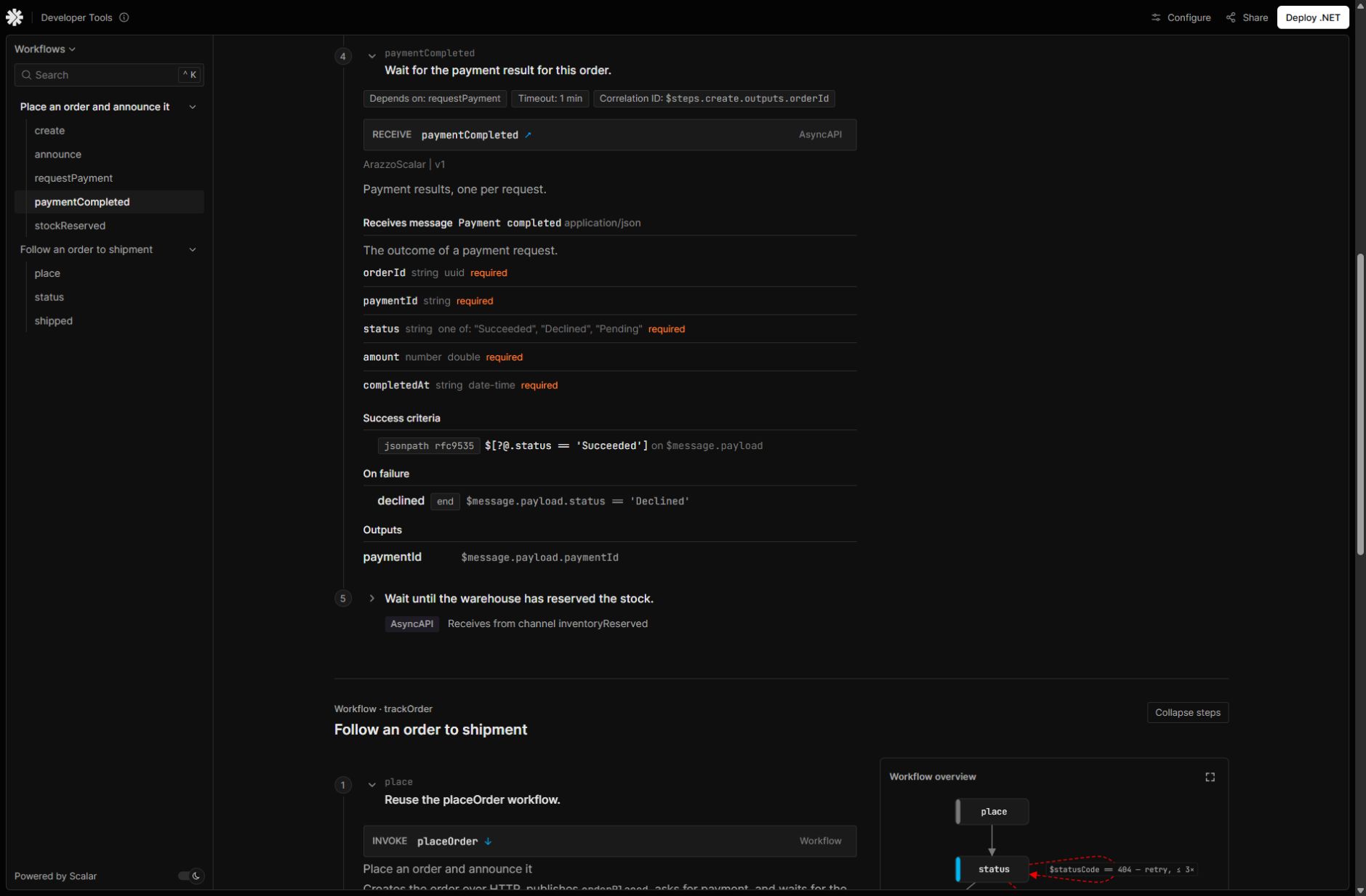
An AsyncAPI step shows the message it receives, with its payload, next to the step's correlation ID, timeout, criteria and outputs:
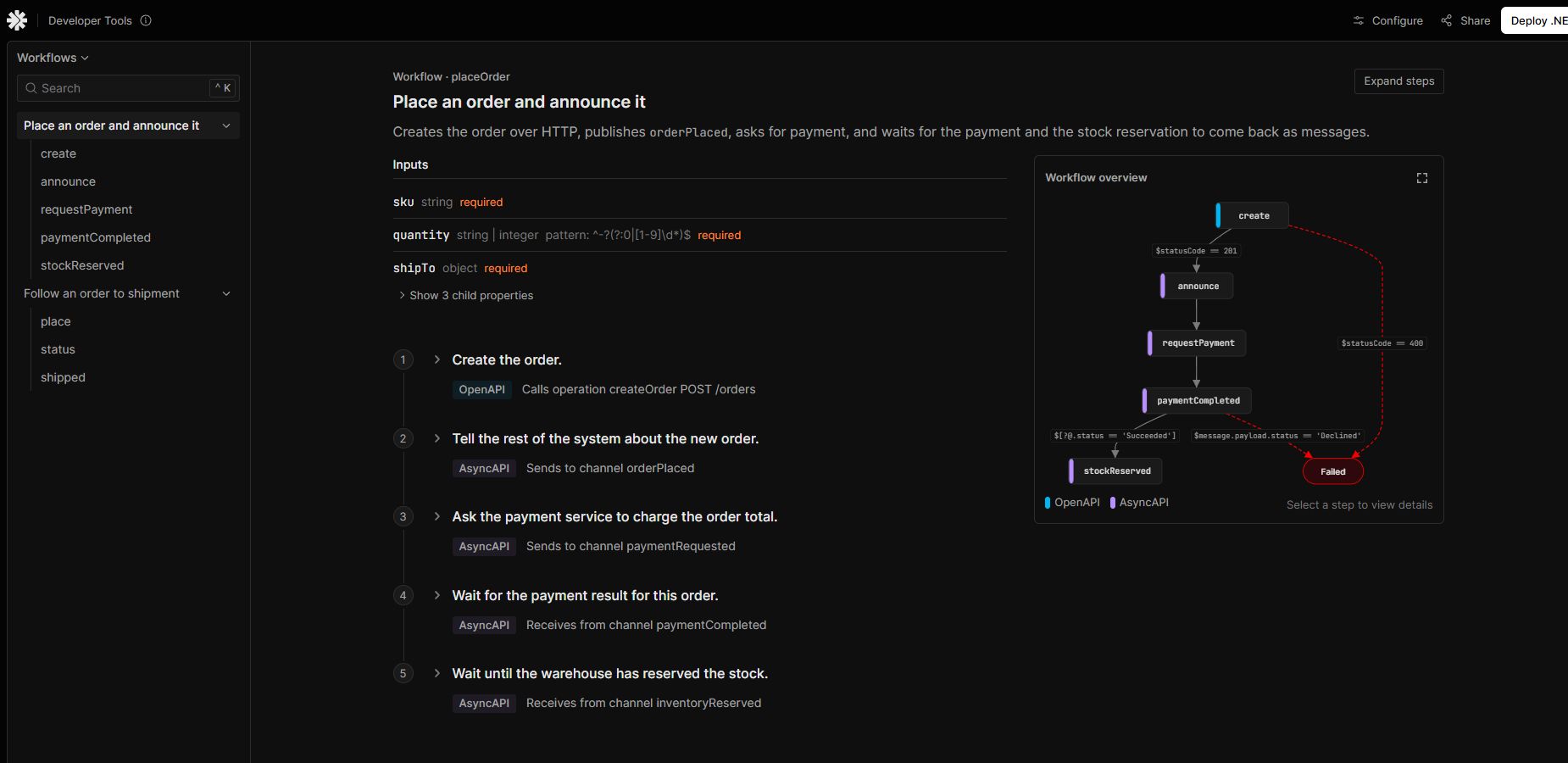
With its steps collapsed, a workflow reads as an outline of what each step calls:
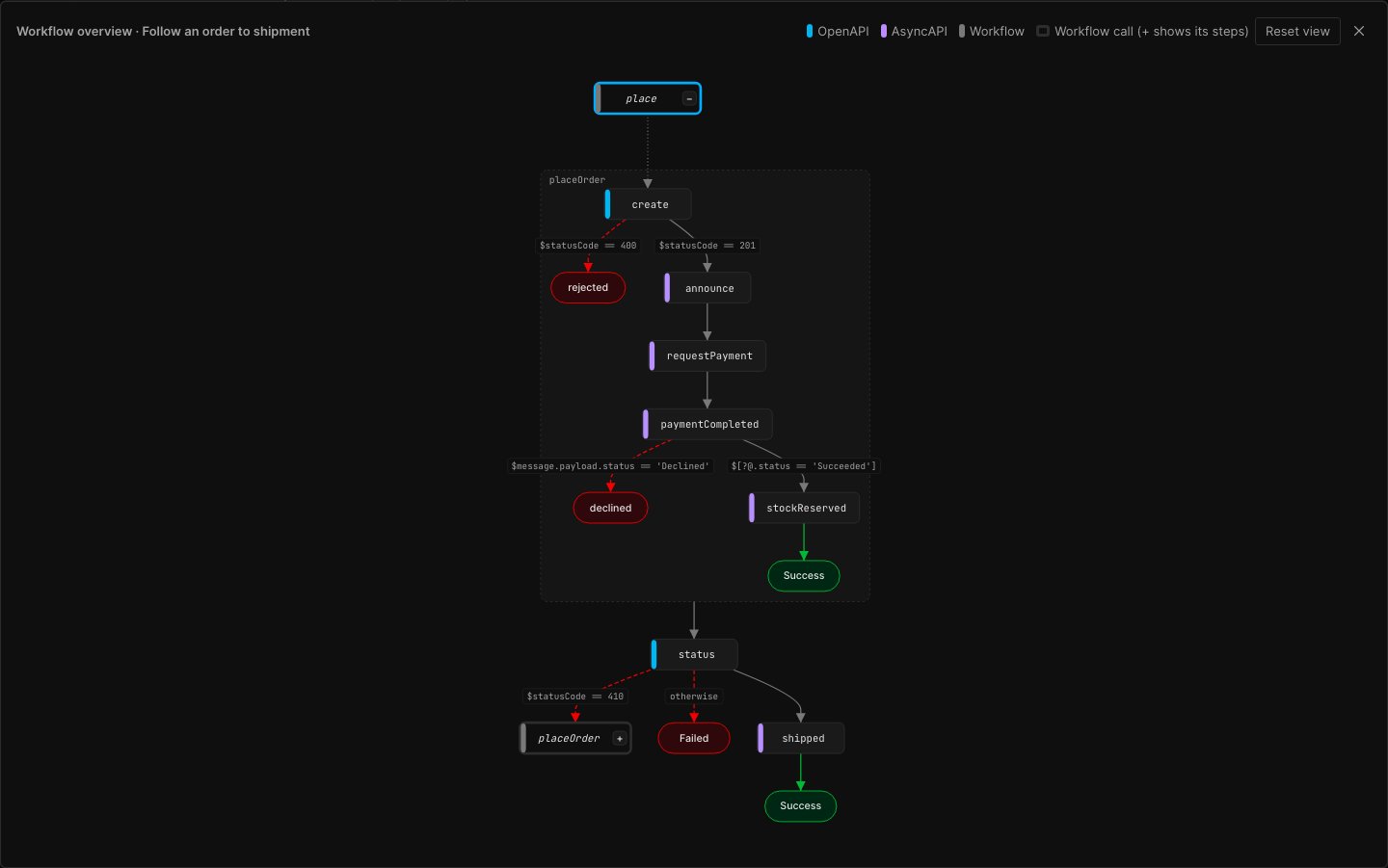
The trackOrder workflow's overview, expanded to fill the window, with its place step expanded to show the
placeOrder workflow it invokes; the cancelled action's goto to placeOrder is a workflow node of its own:
- The document's
info, its$selfURL (Arazzo 1.1) and itssourceDescriptions. Each source shows its spec and version, whether it is loaded in the page, and how many steps use it, and the header counts the steps per spec. - A filter box under the header that narrows the workflows and steps by id, summary, description, target or action (every word must match), keeping each step's number. With the Pages view configured, it also finds the labels, page titles and routes it shows: a step's own, and those of the actions it runs. Scalar's own search (Ctrl+K) does not index plugin documents yet.
- One sidebar entry per workflow, with one child entry per step. Sidebar clicks, deep links and scroll position stay in sync, as they do for operations.
- For each workflow: its inputs (nested properties fold out), shared parameters, steps, success and failure actions, and outputs.
- A workflow overview beside the steps: a flowchart of the steps, with arrows for
dependsOn(or document order) and labeled success and failure branches foronSuccess/onFailure: each branch shows its criteria, and an action without criteria (the catch-all) reads "otherwise"; hovering a branch's label shows the action's name. Drag to pan, scroll to zoom, click a step to jump to it, or expand it to fill the window. It follows Scalar's light and dark themes. From the keyboard, the focused overview pans with the arrow keys, zooms with+/-and resets with0; Tab reaches each step box, and Enter opens the step: its section unfolds, scrolls into view and takes keyboard focus. A step inside an expanded workflow opens in that workflow's own section, and a step the filter hides is shown until the filter changes. Each step box has a colored marker for the spec its target is described in, explained by a legend in the corner.- Actions. A step's branches are the actions Arazzo runs for it: its own
onSuccess/onFailureplus the workflow'ssuccessActions/failureActions, which apply to every step. A step that declares an action with the same name overrides the workflow's for that step only. A success action without criteria always applies, so no arrow continues to the next step in document order after it. - Order. The boxes under a step are always in the same order: its failure paths on the left, in the
order of its
onFailureactions (so aretrythrough a workflow and the end nodes appear as written), then the steps it continues to (dependsOn, document order, or agoto), and Success on the right. The same rule holds inside an expanded workflow, and expanding or collapsing one never reorders the boxes beside it. - Ends.
endsuccess actions lead to one Success node, and so does the last step (or a step no other step depends on) unless one of its success actions always applies (has no criteria), since Arazzo ends a workflow successfully after its last step; that arrow is labeled with the step's success criteria when they are short.endfailure actions lead to one Failed node while they can't be told apart; when they have different names, each gets its own end node named after the action, or after the value of the extension set withEndLabelExtension. - Retries. A
retrythrough another step gets an arrow to that step and one back, since the retrying step runs again afterwards. Aretryof the step itself (nostepIdorworkflowId) is a↻badge on the step's box with its limit and delay (↻ ≤ 3× 2s); hovering the box lists its criteria. - Workflows. A workflow that a step invokes (
workflowId), or that agoto/retryaction invokes, is a node of its own, drawn with a thick outline and listed in the legend. Actions invoking the same workflow share one node. Aretrythrough a workflow gets an arrow to the workflow node, labeled with its criteria and limit ($statusCode == 401 — retry, ≤ 1×), and an arrow back to the step, which runs again afterwards; agotogets only the arrow there. When the retried workflow is expanded, the arrow back starts at its own Success node, where control returns to the step. - Expanding workflows. A workflow node whose workflow is found has a
+button (Tab reaches it, Enter or Space presses it): it shows that workflow's steps inside the diagram, in a box of their own entered from the workflow node, with their own arrows and ends. Workflows inside it expand the same way. A workflow that is already expanded further up the path is not expanded again: it is marked↻(a cycle).−hides the steps again, along with anything expanded inside them. The workflow's steps open below its node, which stays where it was under the pointer; the zoom is kept (the overview is scaled to fit only when it is shown, reset or resized), and the full-window view stays open. While a workflow is expanded, the overview beside the steps may grow to the height of the window, and pans beyond that. - Workflows of other documents. A call such as
$sourceDescriptions.identity.signInexpands too when the Arazzo document that source names is loaded on the same Scalar page, for example a second Arazzo source published by the service that owns the workflow. A qualified call always goes to that document, even when this one has a workflow with the same id. Its steps resolve in their own document: its reusable actions, its page registry in the Pages view, and its step targets. The cycle check counts the document as well as the workflow, so a call back into this document is marked↻. The group is labelled with the readable form,identity.signIn, and so is the node when the document isn't loaded, in which case it can't be expanded. Boxes inside it have no step section on this page, so they don't open one. The document may load after this one: the view keeps checking until every source, and every Arazzo source of the documents those lead to, is loaded. A relative source URL resolves against the document's `` when it has one, as Arazzo specifies, else against the URL it was loaded from. The step badge shows the called document's Arazzo version, and the step counts under that source in Sources.
- Actions. A step's branches are the actions Arazzo runs for it: its own
- For each step: the operation, channel or workflow it targets, with that target's description and
its own parameters. A step that invokes a workflow has a "Show its steps" button that lists that
workflow's steps (each with what it calls) under the target, read-only and one level deep. This includes a
workflow of another loaded Arazzo document. The target link goes to the workflow itself, in its own
document when it is another one. An AsyncAPI step also shows the message it sends or receives: its payload as
a property list (references followed into the AsyncAPI document), its content type, and its first
example payload; a payload in another schema format, such as Avro, is shown as written. Then come
the step's parameters, request body, success criteria,
onSuccess/onFailureactions and outputs. Arazzo 1.1 steps also show theirtimeoutandcorrelationId. A criterion that isn't a simple condition is labeled with its language (regex,jsonpath,xpath, plus the version when given) and the context it reads, and an action that starts a workflow lists theparametersit passes. A request body lists itsreplacements(target, its selector type, and the value written there). Wherever a value can be an Arazzo 1.1 Selector Object (outputs, parameters, replacements), it reads as "$.lines[0]on$response.body" with its language as a badge, rather than as raw JSON. Reusable objects ($components.parameters.*and the like) are resolved. - Each step target is labeled with its spec:
OpenAPI,AsyncAPIorWorkflow, with the version in its tooltip and the Sources table. Channel steps also say whether they send or receive. See Which spec a step targets. - The reusable
components(input schemas, parameters, success and failure actions) in a section of their own after the workflows, with a sidebar entry. - Specification Extensions (
x-*fields) on the document,info, source descriptions, workflows, steps, request bodies, actions and components, in a collapsed "Extensions" list. Scalar's ownx-scalar-*fields are left out. - Each step can be collapsed with the chevron beside its heading, and a workflow's "Collapse steps" button folds all of its steps at once. A collapsed step still shows a one-line summary of what it targets (spec, action and target), and clicking a step in the overview opens it.
- Each workflow and step heading has a copy-link button. With Scalar's
classiclayout, each workflow can be collapsed.
A step's target is looked up in the documents loaded in the same Scalar page. The step's
source description URL is matched against the URL each Scalar source was loaded from, so a
generated /openapi/v1.json source description finds the /openapi/v1.json Scalar source. When
the target's document is not loaded, the step still shows the raw operationId or path.
A resolved target is a link. It names the target (its operationId, or the AsyncAPI operation or
channel name) rather than the raw {$sourceDescriptions.…} reference, and opens it in its own
document: the OpenAPI operation, the AsyncAPI operation, or the channel. Scalar picks the document it
shows when the page loads, so following the link reloads the page at the target's deep link. Back
and Forward switch documents the same way, and Ctrl-click opens the target in a new tab. A step that
invokes another workflow links to that workflow's section. The links use the ids of Scalar's own
sidebar, so they follow any generateOperationSlug the page sets; they assume Scalar's default hash
routing.
The ArazzoScalar example
puts this together: two workflows mixing HTTP operations and messages, rendered at /scalar. They
are built with the fluent API, including payload replacements, Selector Object parameters and
outputs, workflow outputs a later workflow reads, and a reusable failure action. The example also
serves a hand-written "Arazzo field reference" document (wwwroot/fixtures) that uses every field of
Arazzo 1.1, so the view is checked against fields the example's workflows don't use. For what the
builders can and cannot produce, see Authoring coverage.
Pages view
For readers who think in screens rather than operations, the workflow overview can show the pages a user goes through. Describe the app's pages once on the document, then say which page each step is on and which page each action lands on, with plain-language labels:
{
  "arazzo": "1.1.0",
  "x-shop-pages": {
    "checkout": { "title": "Checkout", "route": "/checkout" },
    "payment": { "title": "Payment", "route": "/checkout/payment", "description": "Card details." },
    "paymentDeclined": { "title": "Payment declined", "route": "/checkout/declined" }
  },
  "workflows": [{
    "workflowId": "placeOrder",
    "x-label": "Place an order",
    "steps": [
      { "stepId": "create", "operationId": "createOrder", "x-page": "checkout", "x-label": "Place the order" },
      {
        "stepId": "paymentCompleted", "channelPath": "…", "x-page": "payment", "x-label": "Wait for the payment",
        "onFailure": [{ "name": "declined", "type": "end", "x-page": "paymentDeclined", "x-label": "Card declined" }]
      }
    ]
  }]
}
app.MapScalarApiReference(options => options
    .AddArazzoDocument("v1", "Workflows")
    .WithArazzoOptions(arazzo =>
    {
        arazzo.PagesExtension = "x-shop-pages";
        arazzo.PageExtension = "x-page";
        arazzo.LabelExtension = "x-label";
    }));
With the fluent API, add them with WithExtension on the options, workflows and steps, and through an
action's Extensions; the ArazzoScalar example
does. When any of the three options is set and the document uses it, the overview (inline and full window)
gets a Technical | Pages toggle. Technical, the view described above, is the default; the choice applies
to every workflow on the page and is remembered in the browser.
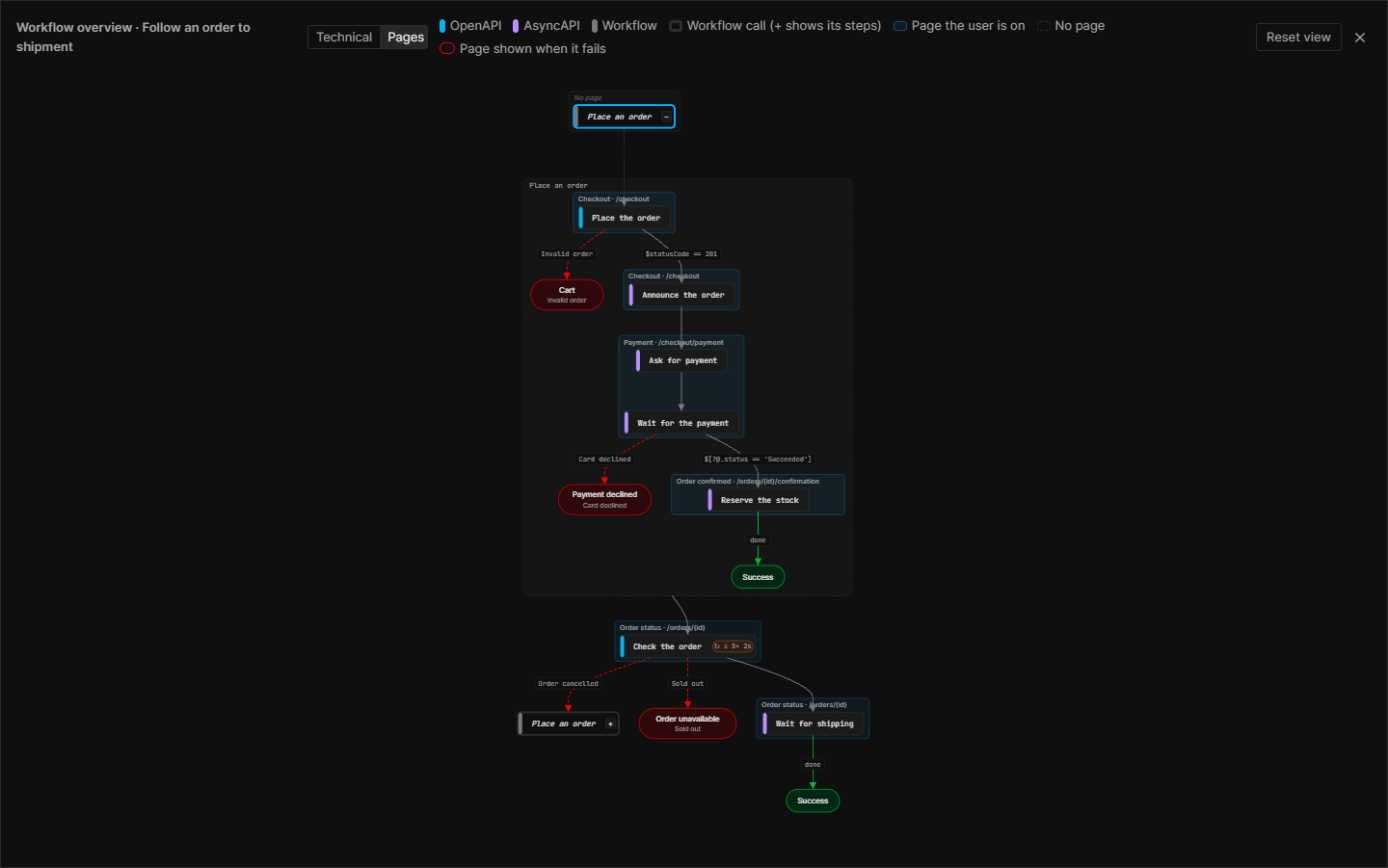
In the Pages view:
- Steps are grouped into bands, one per page, titled with the page's title and route ("Payment · /checkout/payment"). Consecutive steps on the same page share a band; steps without a page are in a muted "No page" band. A band never covers boxes that aren't its steps: when other boxes sit between them, each step gets a band of its own. An expanded workflow's steps get their own bands inside its box. A band is centered on its steps and as wide as its title, and the layout keeps that room free, so a long route over a short step stays inside its workflow's box and clear of the branch beside it. A title and route longer than 64 characters are cut with "…"; the band's tooltip has them in full.
- Boxes show the step's label, or its
stepIdwhen it has none; thestepIdis in the tooltip. A workflow node shows the label (or the summary) of the workflow it calls. - Arrows show the action's label, or its criteria (or "otherwise") when it has none. The arrow to Success after the last step reads "done".
- An end node is named after the page its actions land on (from
PageExtension, orEndLabelExtension), with their label under it, when every arrow into it lands on that page; Success then shows that page with a ✓. When the arrows into one end node land on different pages (paid orders on Confirmation, pending ones on Review, or two steps'rejectedactions on pages of their own), or one of them has no page (the "done" arrow after the last step), the end node keeps its generic name and each arrow ends with its own page ("→ Confirmation"). - Everything else is as in the Technical view: the same order, colors and arrows, and expanding and collapsing keeps the zoom and the node under the pointer. Switching views keeps the zoom too. The legend explains the bands and end pages.
- Whether the toggle appears counts the actions every step runs, so a page on a workflow-level
successActions/failureActionsentry is enough. - The step list shows each step's page and label above its heading.
Which spec a step targets
An Arazzo workflow can mix HTTP calls (OpenAPI) and messages (AsyncAPI), so each step says which one it targets. The spec is worked out in this order:
- When the target is found in a loaded document, that document's
openapi,swaggerorasyncapifield gives the spec and its version. - Otherwise the step's source description decides: the one named by
{$sourceDescriptions.NAME.url}#/…or by a qualified$sourceDescriptions.NAME.operationId, through itstype. A source without atypefalls back to the pointer:/paths/…is OpenAPI, and/channels/…and/operations/…are AsyncAPI. AchannelPathstep is always AsyncAPI. - A bare
operationIdthat is not loaded takes the spec all the source descriptions share. When they mix specs, no badge is shown.
In cases 2 and 3 the badge has a dashed border and reads "not loaded". A step that invokes another
workflow is labeled Workflow. The generated sourceDescriptions from AddOpenApiSource and
AddAsyncApiSource always set type, so this fallback works for them.
The spec is also shown as a color (blue for OpenAPI, purple for AsyncAPI, gray for workflows), taken from Scalar's theme, but the badge text and the diagram's legend and tooltips always name it, so the color is never the only cue.
.NET Aspire
Bielu.AspNetCore.Arazzo.Scalar.Aspire does the same for the Scalar resource of a .NET Aspire AppHost
(Scalar.Aspire), where the API Reference runs in a container rather than in your app:
dotnet add package Bielu.AspNetCore.Arazzo.Scalar.Aspire
var api = builder.AddProject<Projects.Orders>("api");

builder.AddScalarApiReference()
    .WithArazzo()
    .WithApiReference(api, options => options
        .AddDocument("v1", "Orders")
        .AddArazzoDocument("v1", "Workflows"));
WithArazzo registers the plugin through Scalar's PluginUrls option, which loads it as an ES module
before the API Reference mounts, so the container keeps its own Scalar bundle. By default the module is
dist/scalar-plugin.mjs from jsDelivr, pinned to the @bielu/scalar-arazzo version released with the
package; pass pluginUrl: to load it from somewhere else. AddArazzoDocument adds the document the API
serves with MapArazzo() (/arazzo/{documentName}.json by default) as a source of that API reference,
next to its OpenAPI and AsyncAPI documents. The app itself doesn't need Bielu.AspNetCore.Arazzo.Scalar
for this: the container renders the documents.
To set the options (EndLabelExtension and the Pages view's PagesExtension,
PageExtension and LabelExtension), call WithArazzoOptions instead of WithArazzo:
builder.AddScalarApiReference()
    .WithArazzoOptions(arazzo =>
    {
        arazzo.PagesExtension = "x-shop-pages";
        arazzo.PageExtension = "x-page";
        arazzo.LabelExtension = "x-label";
    })
    .WithApiReference(api, options => options.AddArazzoDocument("v1", "Workflows"));
The module has no other way to receive them, so they go in the query string of its URL
(scalar-plugin.mjs?pagesExtension=x-shop-pages&…). arazzo.PluginUrl replaces the default URL; its
own query parameters and fragment are kept. With no options set, the URL is the one WithArazzo uses.
Every way of setting the options (WithArazzoOptions in the app or the AppHost, createArazzoPlugin,
the page global and the module URL) accepts the same names: x- followed by a name. .NET throws for
anything else, such as x- alone or page; the JavaScript entry points ignore it.
Important
The plugin needs @scalar/api-reference 1.80.0 or later in the Scalar container image. The package depends on
Scalar.Aspire 1.0.2 or later, whose image ships 1.81.0; Scalar.Aspire 0.15.0 and earlier ship an older one,
which shows an Arazzo source as an empty OpenAPI document.
Without ASP.NET Core
The bundle is also published to npm as @bielu/scalar-arazzo. Arazzo for Scalar
walks through it from a JavaScript app, with its options and other entry points:
import { createArazzoPlugin } from '@bielu/scalar-arazzo'

Scalar.createApiReference('#app', {
  sources: [
    { title: 'Pets', url: '/openapi/v1.json' },
    { title: 'Workflows', url: '/arazzo/v1.json' },
  ],
  plugins: [createArazzoPlugin()],
})
dist/scalar-plugin.mjs can be passed to Scalar's pluginUrls instead.
Each Scalar reference keeps its own Arazzo plugin options. Multiple references on the same page can use different extension names. Retry paths show the fallback action reached when the retry limit is exhausted.